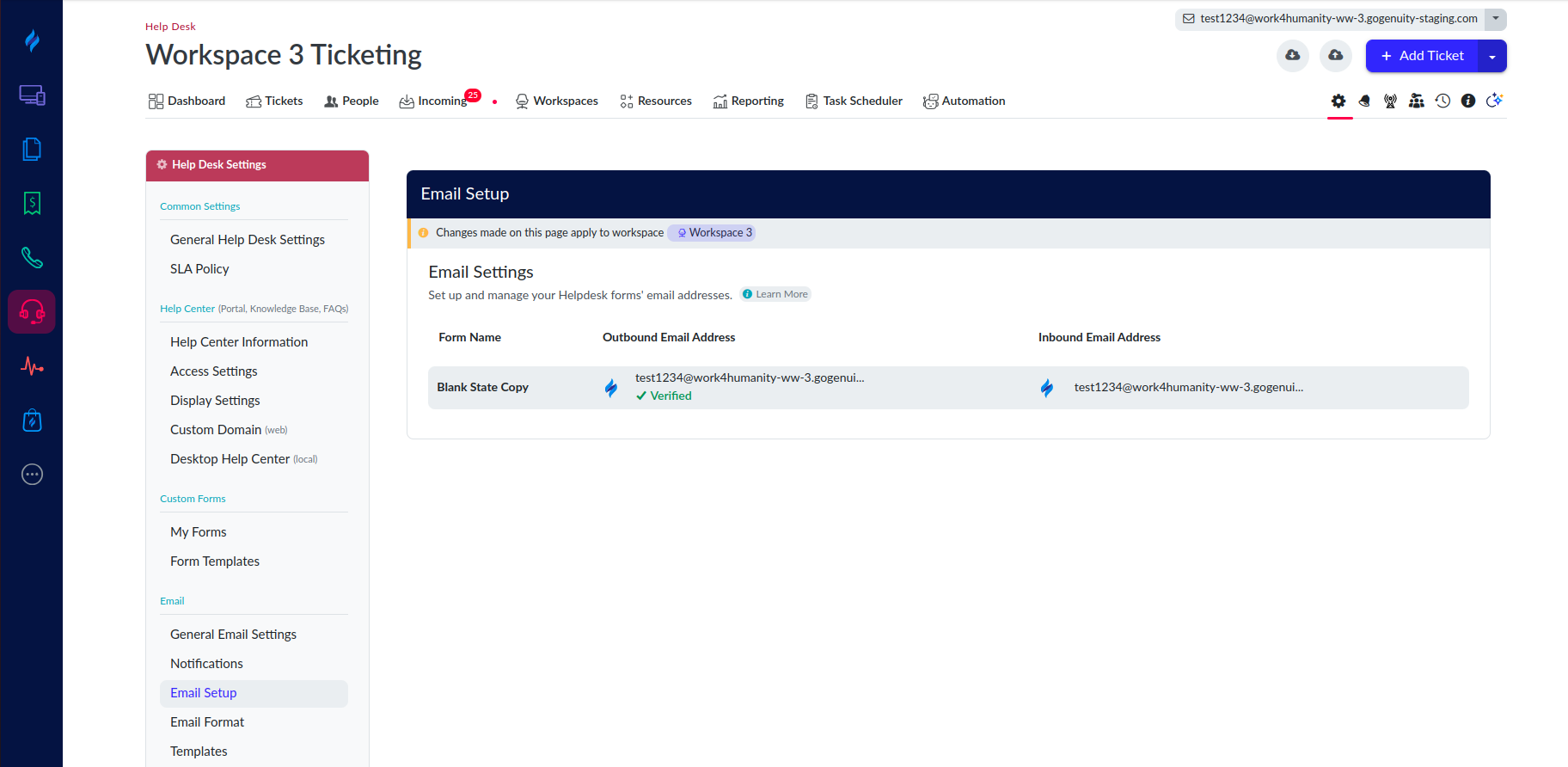
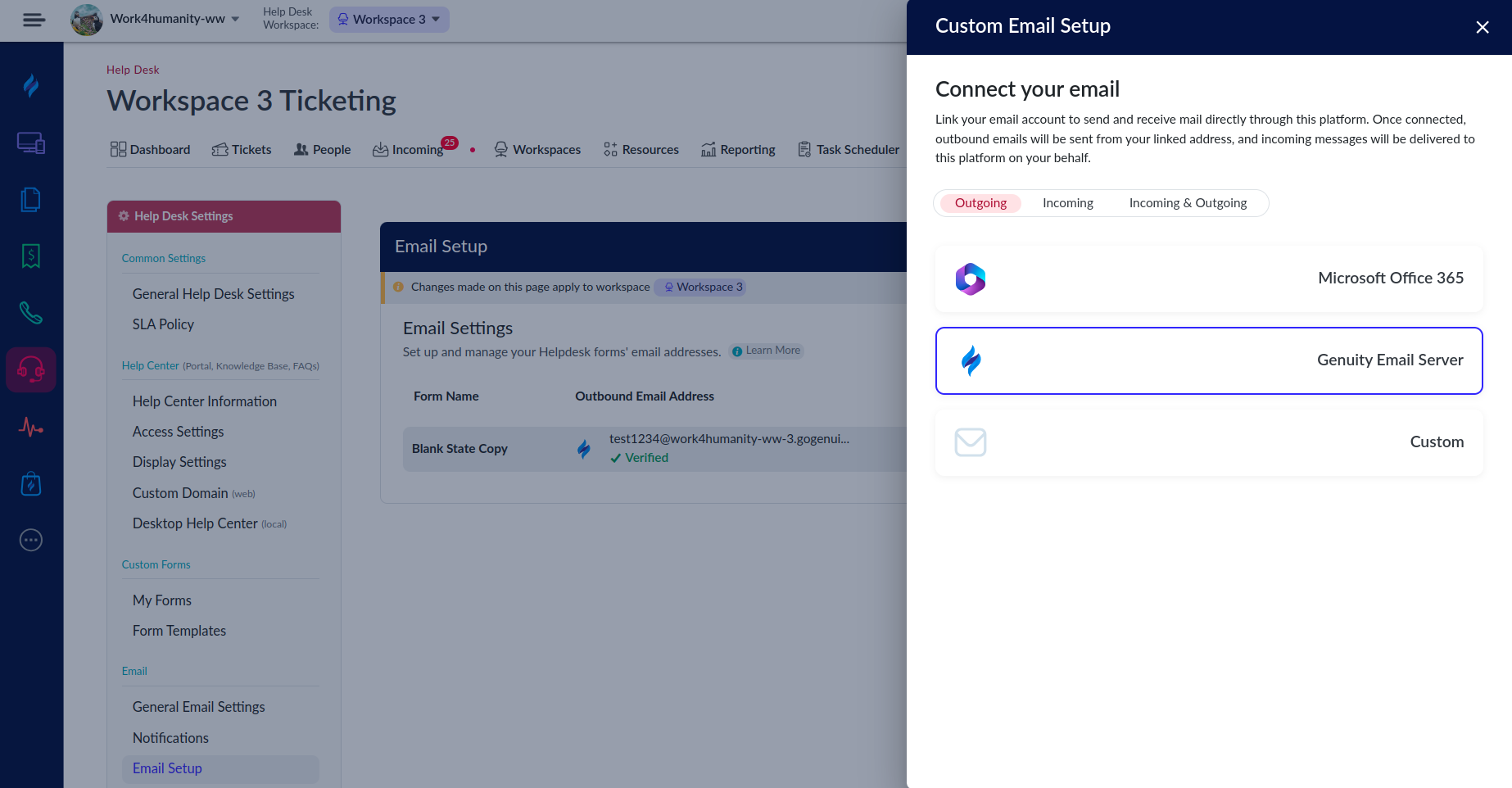
This feature enables seamless inbound and outbound communication directly from your connected email accounts. This update helps streamline ticket creation, replies and notifications.
Key Updates
Inbound Emails
Easily connect your Microsoft Outlook email accounts to automatically convert incoming messages into Help Desk tickets.
Supported setup:
Outlook (Inbound):
Simply select the Outlook inbound tab, then log in and authorize your account when prompted. Once authenticated, that email address will be linked to your form for automatic ticket creation.
Note: Each inbound email address can be linked to only one form. To connect multiple forms, use unique email addresses for each.
Outbound Emails
Send Help Desk notifications directly from your own email server for a more consistent and professional communication flow.
Supported setups:
Microsoft Outlook (Outbound):
Select the Outlook outbound tab and sign in to your account when prompted. Once authorized, outgoing Help Desk emails will be sent from that address.Custom Email (Outbound):
Choose the custom outbound tab and manually enter your SMTP server details, port number, credentials, and encryption settings. Before saving, a test email will automatically be sent to confirm configuration.
Streamlined Communication
With these Microsoft Outlook (Inbound & Outbound) and Custom (Outbound) options, you can now manage all Help Desk communications more efficiently—right from your existing email infrastructure.